Nowadays, mobile phones have become very common, and everyone has a mobile phone. But in today’s digital world, security has become very necessary in smartphones. Everyone’s phone has personal data and photos, videos, and documents. So they should install very powerful security on their smartphones.
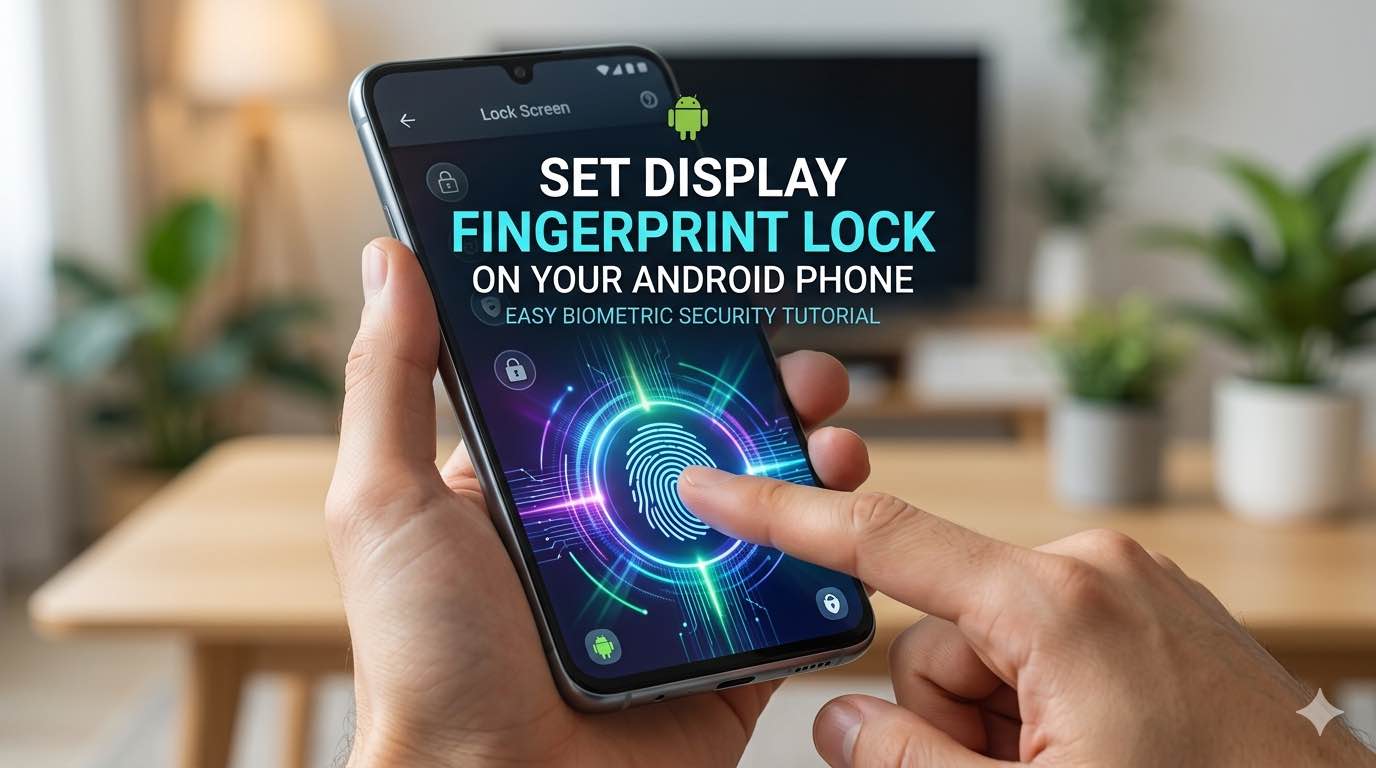
A fingerprint lock is a very secure and convenient method with which you can unlock your phone without remembering a password or PIN. Because to unlock the phone, you have to use your fingerprint, which is very easy.
Step 1: Check the fingerprint sensor.
First, confirm that on your phone, the fingerprint sensor is available. This sensor may be inside the phone’s back button or screen. If the sensor isn’t there, this feature can’t be used. That’s why checking it is very important. If you have an older phone, it’s possible that this sensor isn’t present in it, but if you have a new mobile, this feature will definitely be there.
Step 2: Open Settings.
Unlock your phone and open the Settings app. You can easily access this app from the drawer or notification panel. And with this, you’ll be able to apply a fingerprint lock
Step 3: Go to Security Settings
Go to Settings and tap the Security or Biometrics option. Here you’ll find all the phone’s security features. You can use whichever feature you want, but the topic of this article is applying the fingerprint lock, so we’ll talk about that.
Step 4: Register your fingerprint.
Now select the fingerprint unlock option. First, you need to set a PIN or a pattern. This is because if your fingerprint isn’t working for some reason, you can enter a PIN or password and unlock your phone. Then place it on your finger sensor and scan it. And keep scanning until the system stops it. Scan the finger from a different angle so your accurate data is saved.
Step 5: Enable fingerprint lock.
After the fingerprint is saved, you can enable it for multiple things; for example, you can apply it to any app. You can also use it for payment or authentication. And to unlock the phone, this option will be enabled.
Step 6: Set the test setup.
Lock your phone and use your fingerprint. Unlock it, check, and if everything is correct, the phone will open instantly. Useful tips. Add two to three fingers so a backup is available. If your one finger has gone bad for some reason, then you can use another finger now. Keep the fingerprint sensor clean so it doesn’t get dusty or dirty, and it works properly. Always remember the backup PIN or password.
Final thoughts.
Fingerprint lock is now, for Android phones, a simple but powerful security feature. It gives you fast access and strong protection as well. If you want to make your device secure and easy, then you should definitely try a fingerprint lock. And even those people can try it who keep worrying a lot about their security